
You can annotate a PDF on iPad with built-in tools, an Apple Pencil or your finger, and no special setup. The basic workflow is enough for highlighting, handwriting, shapes, signatures, and short comments. A dedicated PDF app becomes useful when you need advanced search, page management, collaboration, or a large annotation library.
The steps below cover the built-in method first, then show how to create annotations that another person can understand without sitting beside you.
01
How to annotate a PDF on iPad for free
- 01
Save a copy of the original PDF
Keep an untouched source file before adding marks. Rename the review copy with the project, reviewer, and date so later versions are easy to distinguish.
- 02
Open the PDF in Preview or from Files
On recent iPad versions, PDFs can be opened in Preview. Depending on your iPadOS version and where the file is stored, you may also open it from Files and enter Markup.
- 03
Choose Markup
Tap the Markup button to reveal drawing and annotation tools. The exact position and labels can vary by iPadOS version.
- 04
Select a tool
Use the pen or pencil for handwriting, the highlighter for passages, and shapes or arrows for precise visual references. Text and signature tools are better when the information must remain legible.
- 05
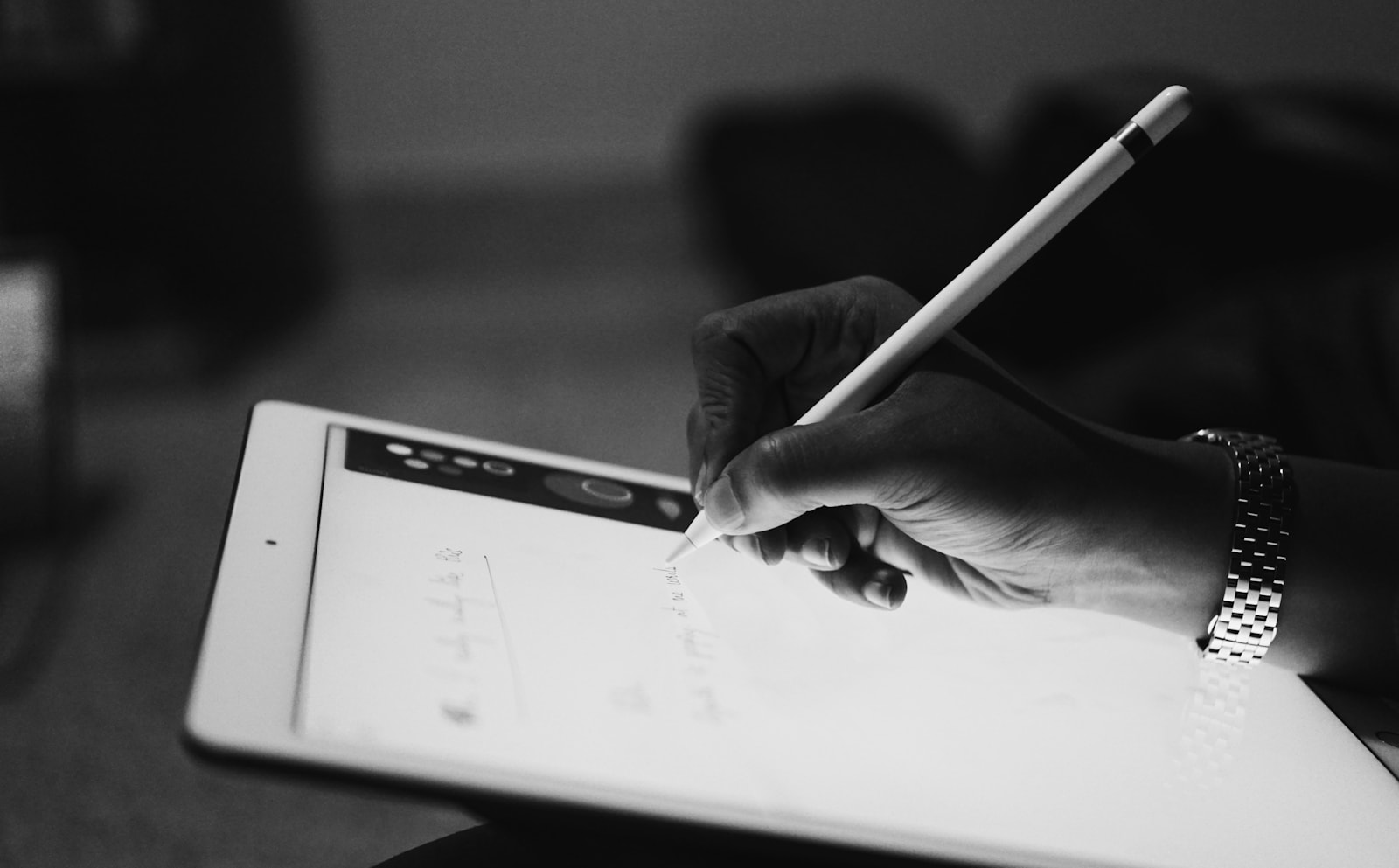
Write with Apple Pencil or your finger
Zoom in before adding small marks. Use undo immediately after an accidental stroke rather than trying to hide it with more ink.
- 06
Save and share the review copy
Confirm that the file has finished saving, then reopen the shared copy once to make sure the pages and annotations appear as expected.
02
Apple Pencil tips for PDF annotation
- Rest your hand naturally, but confirm the app distinguishes Pencil input from finger navigation.
- Use your finger for scrolling and zooming when the app offers a Pencil-only drawing setting.
- Zoom in for handwriting and small targets; zoom out to review the page hierarchy.
- Choose a medium stroke for circles and arrows so the mark remains visible without covering the content.
- Use undo instead of an eraser when you want to remove only the most recent accidental stroke.
- Test Pencil gestures such as double-tap or squeeze only if your Pencil model and chosen app support them.
03
Create a simple PDF annotation system
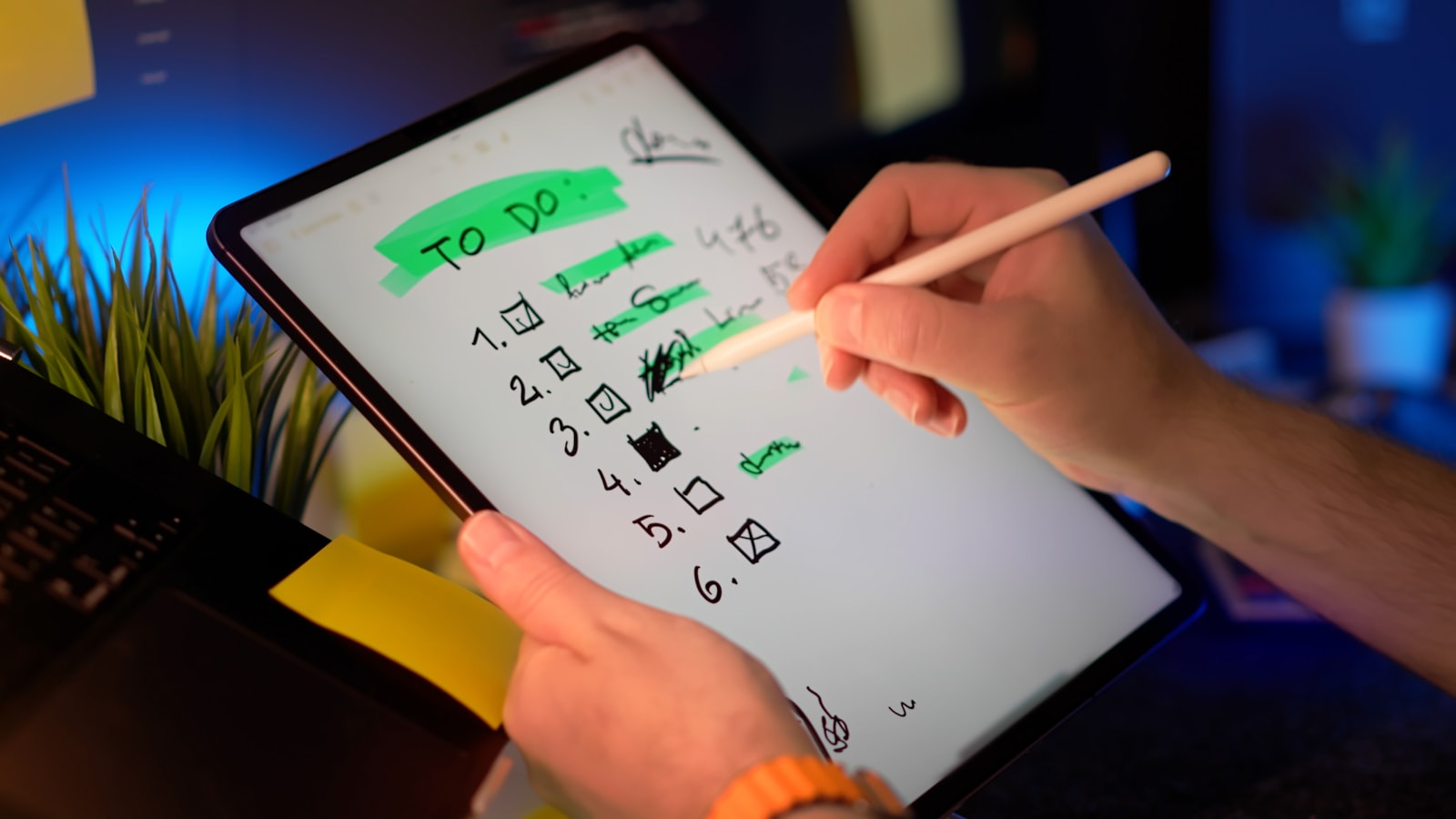
A consistent visual language helps the recipient scan the review before reading every comment. Keep the system small enough to remember and include a one-line legend on the first page when several people will use the document.
- Highlight: a passage to revisit, verify, or discuss.
- Underline: a specific word, phrase, alignment, or baseline.
- Circle: one local object or issue.
- Arrow: a relationship, movement, or suggested placement.
- Red: required correction or factual error.
- Blue: question or request for clarification.
- Green: approval, resolved item, or useful example.
04
Add comments that preserve context
A mark identifies the location; a comment should explain the reasoning. Instead of writing “fix,” state what you observe, why it matters, and what kind of outcome is needed. For example: “The caption could be read as part of the chart legend. Add more separation or a different text treatment.”
Keep each note attached to one target. If the same issue appears on many pages, write one principle and list the affected page numbers rather than repeating a long explanation.
05
How to avoid accidental marks while scrolling
Drawing and navigation compete for the same screen. When possible, use a reading or selection mode for scrolling, zooming, searching, and copying text. Enter Markup only when you are ready to draw. In apps with a Pencil-only option, let the Pencil create marks while one or two fingers navigate.
For long PDFs, finish a reading pass before annotating. Constantly switching between reading and reacting can create duplicate comments and make a small detail feel more important than the document as a whole.
06
Built-in Markup or a dedicated PDF app?
- Use built-in tools for occasional highlighting, signatures, handwriting, shapes, and quick review copies.
- Consider a dedicated app when you need advanced text search, page reordering, saved stamps, linked comments, cloud collaboration, or many large documents.
- Choose a note-taking app when handwriting and study notes matter more than preserving standard PDF annotation behavior.
- Choose a review or proofing platform when several people must discuss, assign, approve, and track the same comments.
07
Editable annotations versus flattened PDFs
Editable annotations remain separate from the PDF page and can often be selected, moved, or removed later. A flattened export merges the visible annotations into the page content. Flattening can improve consistency for recipients, but it makes later editing harder.
Keep an editable working copy for yourself and send a flattened copy only when the recipient needs a stable visual record. Always test the exported file in a second viewer, especially when it contains handwriting, signatures, uncommon fonts, or comments created by another app.
08
A better workflow for long or important PDFs
- 01
Read once without marking
Understand the sequence and purpose before reacting to individual pages.
- 02
Annotate in focused passes
Review structure first, then content accuracy, then visual consistency and polish.
- 03
Mark priority
Distinguish required corrections from questions and optional suggestions.
- 04
Remove duplicates
Combine repeated comments into one principle and list the relevant pages.
- 05
Summarize the review
Add a final note with the most important changes, unresolved questions, and what should happen next.
09
PDF annotation checklist before sharing
- The original PDF is still available and unchanged.
- The filename identifies the project, reviewer, and version or date.
- Every arrow, circle, and comment points to one clear target.
- Required changes are distinguishable from questions and suggestions.
- Sensitive pages or personal information have not been included accidentally.
- The exported file opens correctly in another PDF viewer.
- The recipient knows whether to reply, revise, approve, or simply keep the marked copy.