The best visual ideation tool is not one app for every creative task. It is the tool that matches what you need to do now: draw a form, collect references, facilitate a workshop, review an artifact, generate alternatives, or hand work into production.
This guide compares the main categories of visual ideation software and gives selection criteria for solo designers, teams, educators, strategists, and other visual thinkers. Product examples are included to make the categories concrete, not as a ranked endorsement.
01
Choose by job, not by feature count
- To draw or develop form: start with a drawing-first canvas.
- To gather references and organize a mood: use a visual board or flexible canvas.
- To run a workshop or map a system: use a collaborative whiteboard.
- To comment on an existing PDF, screenshot, or design: use a markup or review tool.
- To generate many visual directions quickly: use an AI image generator.
- To move repeatedly between sketching, references, feedback, and generation: consider a hybrid workspace.
02
Collaborative whiteboards
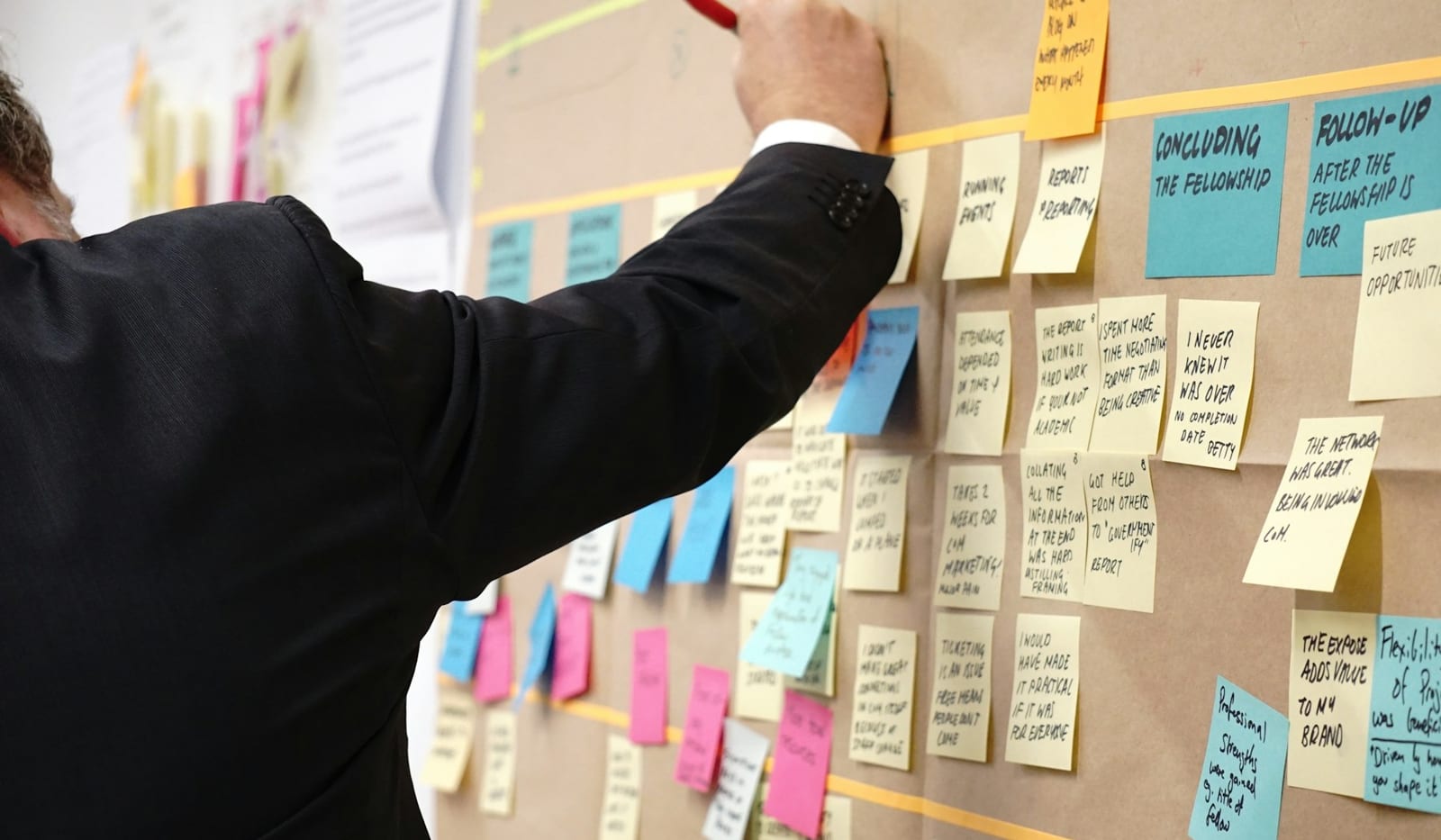
Digital whiteboards are best for group synthesis. They make it easy for many people to add notes, shapes, diagrams, votes, and clusters in the same space. Common examples include Miro, Mural, FigJam, and Freeform.
Choose a whiteboard for workshops, journey maps, affinity mapping, planning, and shared sense-making. Check guest access, facilitation controls, version history, board size, and export quality. A whiteboard may be less satisfying when nuanced drawing or precise visual editing is the main task.

03
Drawing-first canvases
Drawing canvases prioritize ink, brushes, layers, shape control, and stylus input. Examples include Procreate, Concepts, and Adobe Fresco. They work well for illustration, industrial design sketches, spatial thinking, storyboards, and developing a visual form.
Look at stroke quality, Apple Pencil or stylus support, vector versus raster behavior, layer limits, reference-image handling, and export formats. Choose this category when making marks is central to thinking, not just a way to decorate a board.
04
Visual boards and reference organizers
Visual boards help people collect images, text, links, and notes into a spatial arrangement. Milanote, Pinterest boards, and similar tools can support moodboards, research synthesis, campaign directions, and project planning.
Choose this category when relationships between references matter more than drawing precision. Check how quickly you can capture sources, preserve links and credits, create sections, share the board, and export a useful record.

05
Markup and review tools
Markup tools begin with an existing artifact: a PDF, screenshot, photo, presentation, video frame, or exported design. Built-in Preview and Markup tools, Adobe Acrobat, and dedicated proofing platforms are examples.
Choose markup for critique, approval, redlining, teaching, or client review. The important features are clear anchors, comment status, authorship, version comparison, permissions, and an export that preserves context. A large blank canvas is usually unnecessary when the source artifact is already defined.
06
AI image generators
AI image generators are useful for exploring mood, style, composition, materials, and alternative directions quickly. Some work mainly from text; others accept sketches, reference images, masks, or structure controls.
Evaluate reference-image control, local editing, aspect-ratio options, output resolution, privacy settings, commercial-use terms, and whether generation history can be revisited. Use a production design tool for exact typography, geometry, accessibility, and final deliverables.
07
Hybrid visual workspaces
A hybrid workspace connects adjacent activities such as sketching, arranging references, annotating imports, explaining intent, and generating alternatives. Its advantage is continuity: less context is lost when an idea moves from a rough mark into feedback or an AI-assisted direction.
The tradeoff is specialization. A hybrid tool may reduce handoffs in early exploration, but it is unlikely to replace mature CAD, illustration, interface design, document review, or large-workshop software for every production task.
08
Seven criteria for comparing ideation tools
- 01
Input
Can you work naturally with a mouse, keyboard, touch, stylus, camera, files, and links?
- 02
Creative control
Does the tool support the precision, freedom, layers, structure, or local editing your work requires?
- 03
Collaboration
Do you need live cursors and workshops, or is clear asynchronous review more important?
- 04
Context
Can references, decisions, feedback, and versions stay connected to the visual artifact?
- 05
Export and handoff
Can the next tool or person receive a useful PDF, image, vector, layered file, link, or decision record?
- 06
Privacy and ownership
Where is content stored, who can access it, and what terms apply to uploads and generated output?
- 07
Friction
How long does it take a new contributor to add a useful idea, and how much setup is needed for each session?
09
Three practical visual ideation stacks
- Solo concept work: drawing canvas for form, reference board for source material, AI generator for alternatives, and a production tool for final execution.
- Team workshop: collaborative whiteboard for participation, shared document for decisions, and specialist design tools for the concepts selected afterward.
- Client or stakeholder review: source design tool for production, markup or proofing tool for anchored comments, and a decision log for approvals and changes.
10
Common tool-selection mistakes
- Choosing the longest feature list instead of the most frequent job.
- Expecting one app to be equally strong at drawing, facilitation, generation, review, and production.
- Ignoring export until work is trapped in a format the next person cannot use.
- Buying advanced collaboration features when the actual workflow is mostly individual.
- Using an AI generator when the task requires exact text, dimensions, brand assets, or repeatable geometry.
- Adding tools without deciding which one is the source of truth for files and decisions.
11
A quick decision checklist
- What is the first useful action I need to take: draw, collect, organize, review, generate, or produce?
- Will I work alone, collaborate live, or request asynchronous feedback?
- Which parts of the idea must remain precise?
- What files, links, or records must leave the tool?
- Does the project include private, client, or regulated information?
- Which specialist tool will receive the work when ideation ends?
- Can I test the real workflow with one small project before committing?